
Collapp is an application for collaborative project planning. Its design goal was to provide a simple to use solution for project teams in their day to day project planning activities. "Simple" means that the application should not be loaded with any possible feature but with the most important ones. And these important ones should be easy to find and easy to use. Collaboration can only occure when user acceptance of the used software is high.
Basic Planning Concepts
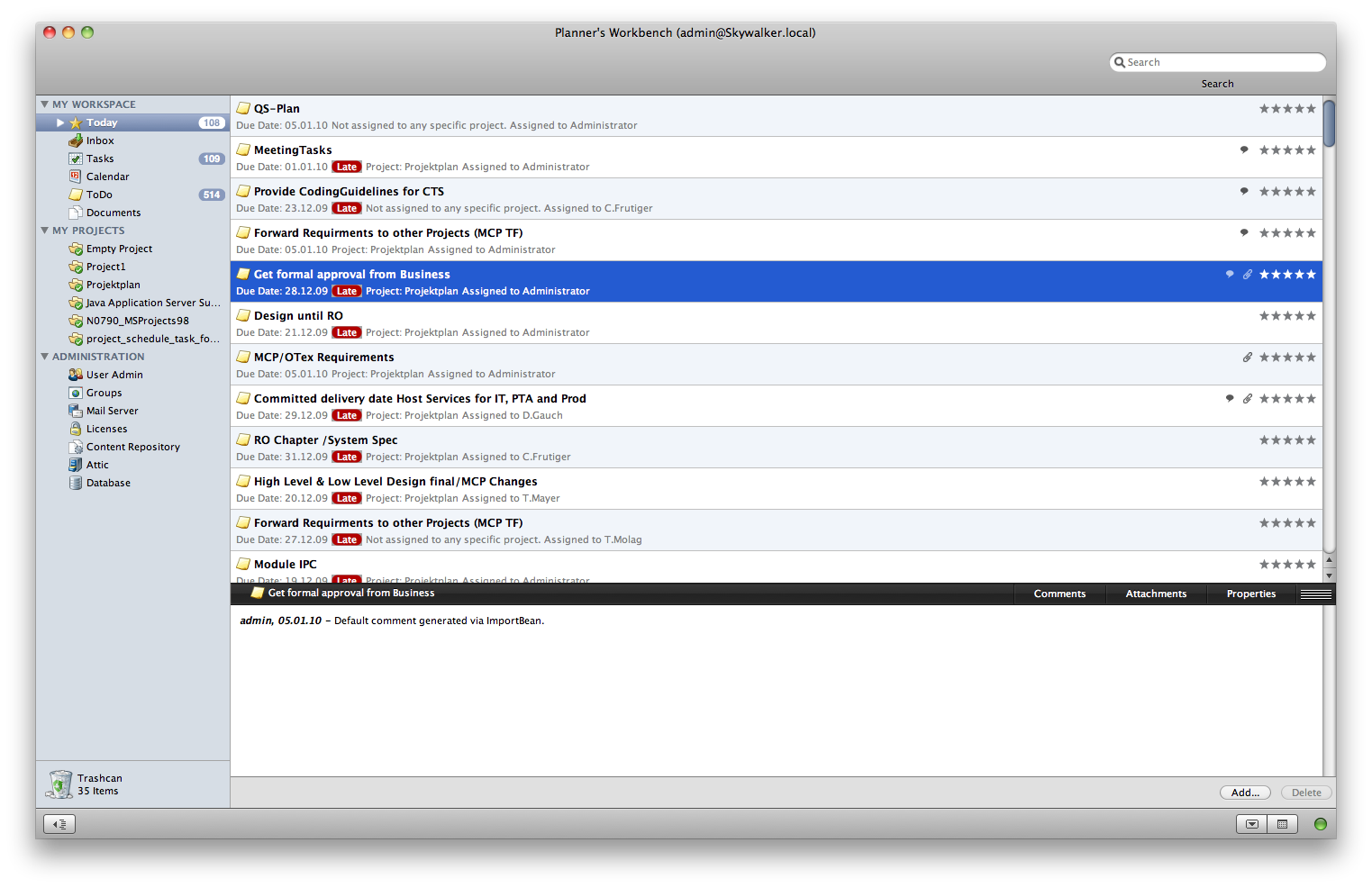
Collapp allows its users to set up projects and populate these projects with three different types of activities: phases, milestones, and tasks. A phase is usually a longer timeframe (at least several weeks, usually months) and is used to divide the project timeline into larger segments. Phases often begin and / or end with milestones. These milestones can only be reached when tasks have been completed. A task has been completed if the team members (resources) assigned to them have indicated that the task has reached a completion percentage of 100%. Even though all tasks of a project have to be completed Collapp still provides a way to indicated the importance of a task via a 5-star rating system. Users can prioritize their work based on this rating.
Basic User Interface Concepts
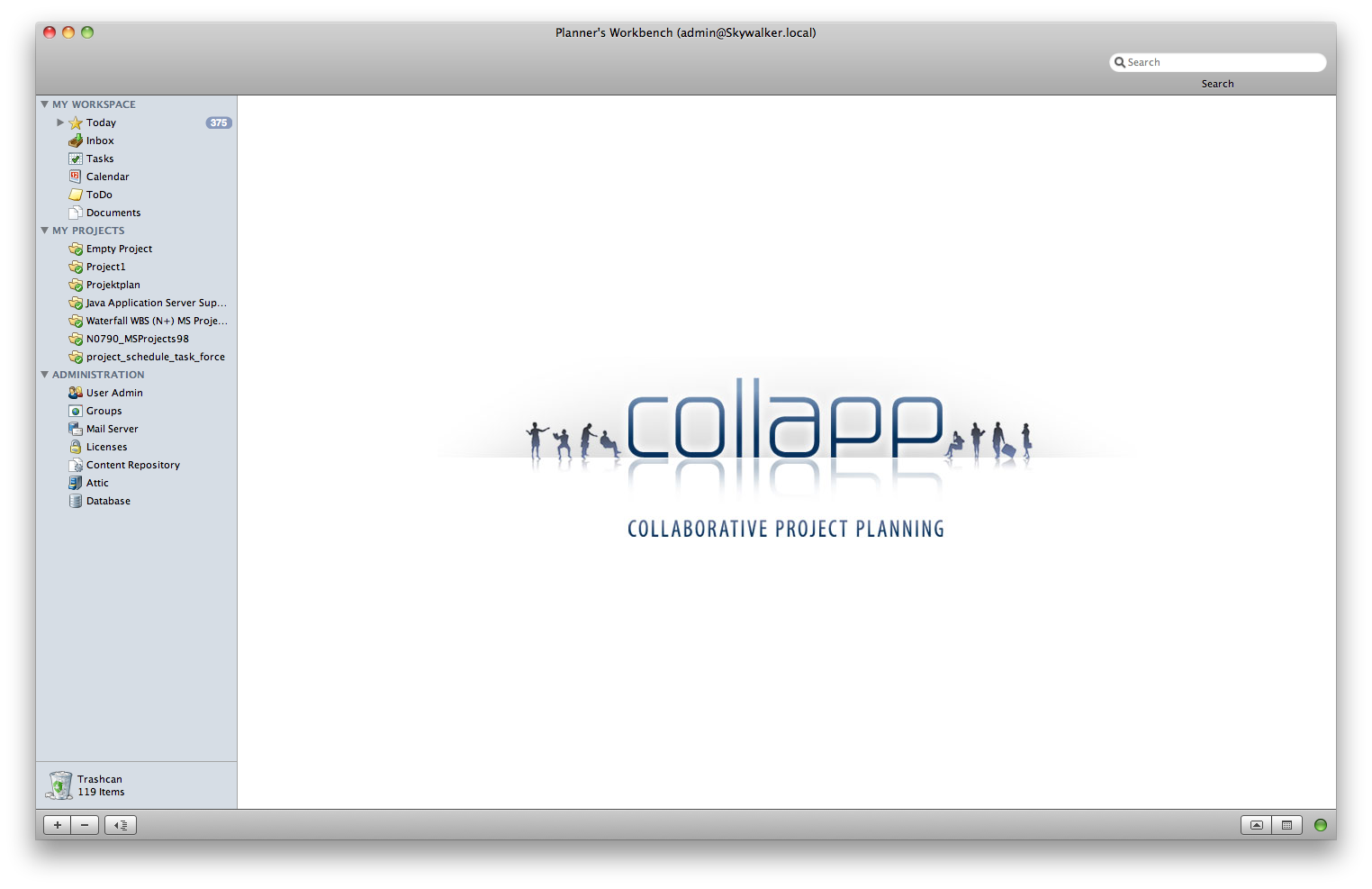
The main window contains the following main areas:
- Sourcelist - used to navigate from one view to another (action items, tasks, projects, ...). The sourcelist can display up to four categories: My Workspace, My Projects, Watched Projects, Administration. Each one of these categories shows several items. Selecting an item brings up the view(s) for this item.
- Primary View Area - displays different types of views depending on the selection made in the sourcelist. Views allow the user to edit information relevant for the selected item in the sourcelist. There are different types of views: table view, list view, form view. The form view behaves somewhat differently than the table and list view, as it needs to be unlocked first before any changes can be made. This is due to the fact that many settings will be submitted to the server at the same time and without locking users could interfere with each other.
- Toolbar - behaves differently based on the platform it runs on. On Mac it displays the column browser button, server and user information, data loading progress. On Windows it shows controls for common actions that can be performed on the individual views, such as printing, creating / deleting items, opening / closing the tray / the sourcelist / the drawer / the column browser.
- Statusbar - behaves differently based on the platform it runs on. One Mac it is used to display status text information and controls for creating / deleting items, opening / closing the tray / the sourcelist / the drawer. On Windows it is used for displaying status text messages and server / user name.
- Menubar - access to standard operations such as preferences, exit, undo, redo, help.
- Tray - contains secondary views such as "Documents", "Properties", "Comments". These views are dependent on and controlled by the current selection in the primary view area.
- Drawer - on MacIntosh often called the "Meta Data" area. Can control information about the currently selected object. For example a photo of a selected user.
- Trashcan - can be clicked to open a window, which lists deleted action items, tasks, web links. The user can restore deleted items from inside this window. The user can also empty the trashcan. Please note, that the trashcan window does not list deleted projects. Deleted projects move into the "Attic" and can only be completely deleted by a system administrator. Projects can also be reactivated, moved out of the attic.
- Column Browser - most primary views that display a table can also be controlled with the help of the column browser. The column browser shows lists with table column values that can be selected to perform a filtering operation.
User Workspace
Today Screen (Get Things Done)
The today screen is the view that will be used the most by the users. It shows the action items that are due today (or already late) and the project tasks that are currently active, maning those tasks that are currently relevant to the user because he or she has been assigned to work on them. The today screen shows the most relevant information for each action item and task at a glance and the user can focus on working off this list.
User Tasks
A user can be a team member in several projects at the same time. Tasks can be assigned to him in any or all of these projects. The user tasks screen presents a table view that shows all of those tasks. The user can perform fine grained searches and filtering to find a task for which he wants to provide feedback, e.g. percentage complete, priority, comments, documents, links, ....
User Action Items
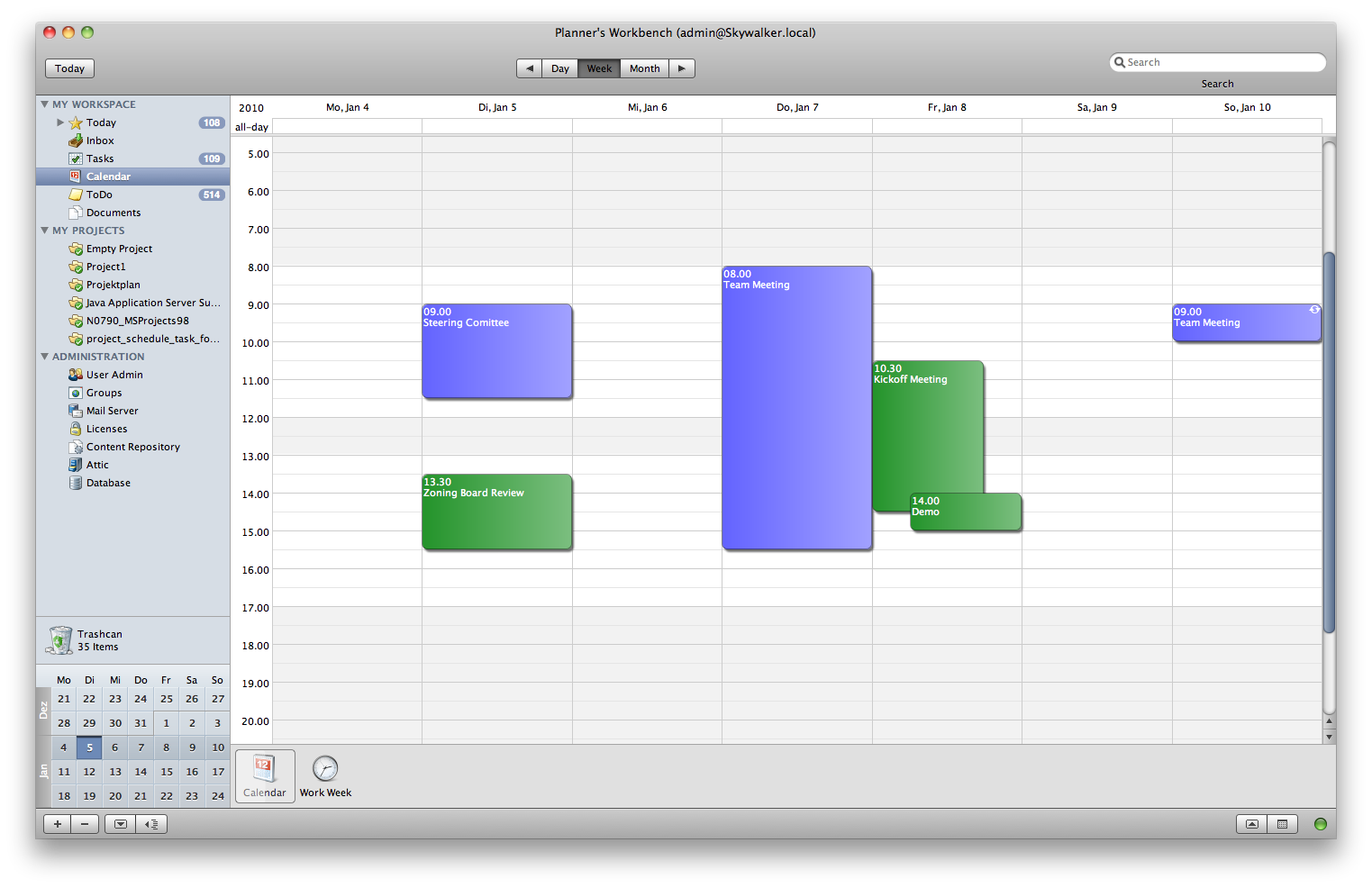
Project tasks are generally higher-level abstractions of some kind of work that needs to be performed in order to reach the goal of a project. A task usually results in several different actions that need to be performed by the team members assigned to the task. These action items can be created by anyone in the team. By default they are assigned to the person, who created them, but they can also be assigned to any other team member. The user's action item view displays the items assigned to the user, or the items owned (created) by the user, or both at the same time.
Working with Projects
To work with / edit a project the user needs to select the project in the sourcelist inside the "My Projects", or "Watched Projects" category. The primary view area will then display a view, which consists of several subviews. Each subview focuses on one aspect of the selected project: general settings, project timeline, phases, milestones, tasks, plan, documents, links. The user can switch between subviews by clicking on one of the large icons below the view area.
Project Settings
All settings that are not directly related to any project activities can be edited in the Project Settings view. Settings include: project name, project ID, owner of the project, deputy of the owner, time conversion parameters (hours in a day, hours in a week, ...), project visibility (who is allowed to "watch" the project), and various other settings. This view is a form view and needs to be unlocked first before settings can be changed. Collapp will inform users if they edit the same form at the same time.
Project Timeline
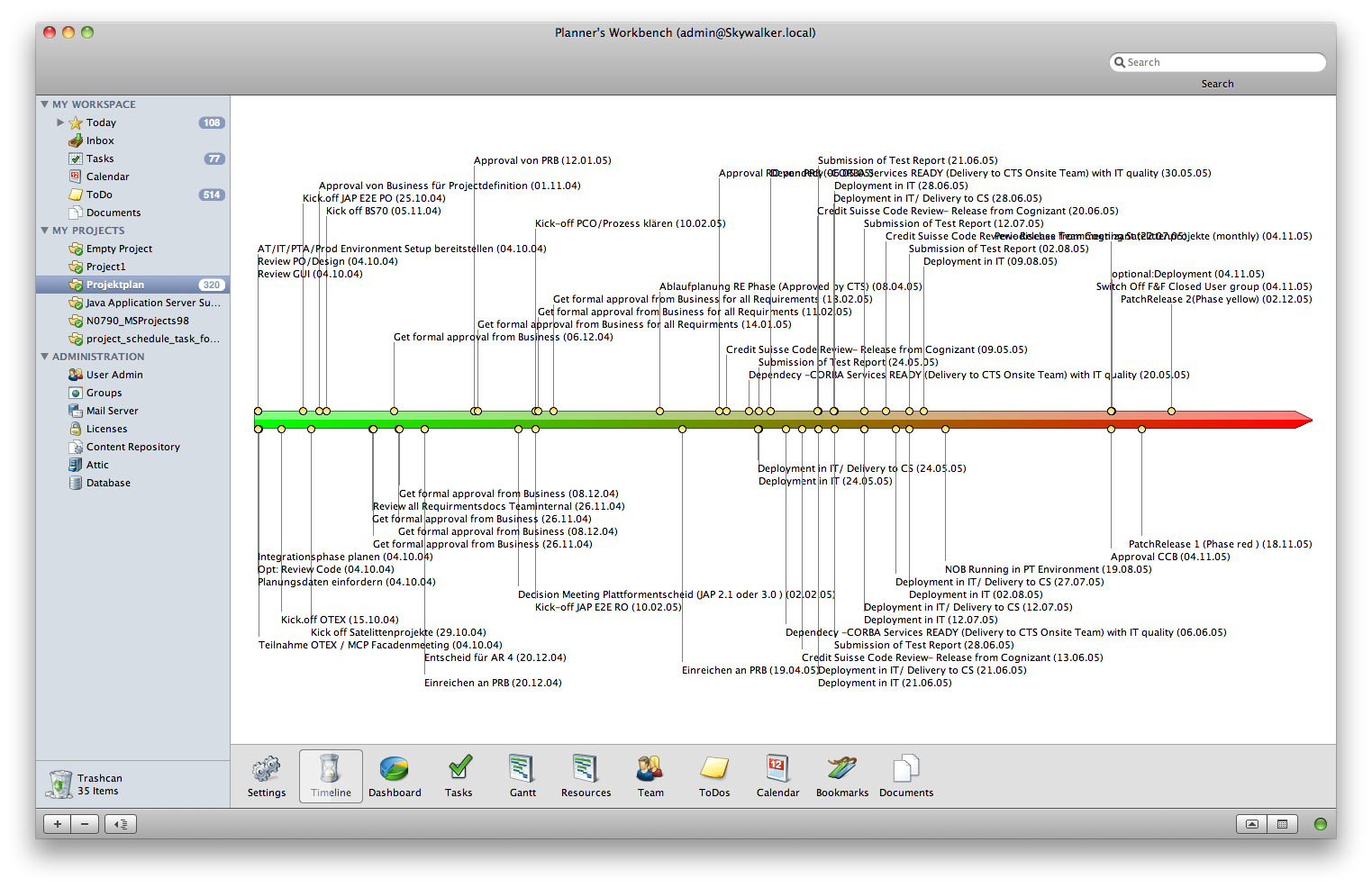
The timeline view visualizes the overall project plan by displaying only phases and milestones in a non-overlapping way. The visualization takes the phase types and milestone types into consideration. Minor milestones are drawn small, major ones large. Milestones and phases are colored according to their types (phase and milestone types can be defined by administrators and are valid for the entire company). The user can also see the progress of the project at a glance. Completed activities are annotated with a checkmark. The current time ("today") is shown as a red line reaching from the top to the bottom of the view).
Project Phases / Milestones / Tasks
There are three views that cover creating / editing / deleting the three activity types: phase, milestone, tasks. They are all table views with the standard sorting and filtering options. Users should make ample use of the secondary views to enrich the activities with comments, attachments, properties, and links. Another very important secondary view is the "related action items" view, which shows those action items that are linked to the currently selected activity. These are items created by the team members and they show what exactly needs to be done before a task can be completed and how much of this work has already been done. This is great feedback for the project leader / planner.
Project Plan (Gantt Chart)
Gantt charts are always at the heart of any project planning software. Collapp is no exception here. The project plan view utilizes our FlexGantt framework and provides a state-of-the-art control for visualizing and editing the plan for the team. Activities can be created, edited, and directly assigned to resources, all within the same view. The Gantt chart highlights all conflicts and allows the user to fix any constraint violations right here.
Project Documents
No project without documents. Collapp supports the team by offering a simple to use and central place for storing all project-relevant documents. The users can create folder structures and upload Word, Excel, or PowerPoint documents via drag and drop. All team members will instantly be able to access these documents on the server.
Project Web Links
Not everything that is relevant for a project will ever be accessible in a single place. Instead information is spread out all over the place and accessible via links. These links can be added directly to the project so that the team does not get lost in the ever growing intranet or internet.
Administration Tasks
User Administration
No enterprise application without user management. Collapp maintains its own user database, which can be synchronized with an LDAP company staff directory. Two user roles are supported: standard user and administrator. Permissions for creating / deleting / updating the various objects inside Collapp are based on team member roles and outside the scope of the user management interface. The following screenshots shows the table view used for displaying the users and their attributes.
Phase / Milestone Types
The project governance model of large enterprises often defines different types of phases a project has to go through and milestones that need to be reached. Phase type examples are "Analysis", "Design", "Implementation", "Testing", "Rollout", and "Closure". Milestones could be "Project Kickoff", "Quality Gate", "Feature Freeze", "Release", "First Prototype". An administrator can create these phase and milestone types, name them, assign a color scheme to them, and in the case of milestones assign an importance to them (minor / major / normal milestone). Classifying phases and milestones in this way makes it easier for the user to identify them due to the different appearance.
Extra Columns
Enterprises generally have additional attributes on their activities, which can be relevant for their planning activities. Values for these attributes can be stored in additional columns in the database table used for activities. The names of these columns can be customized in the form view shown below.
Mail Settings
Creates, deletes, and updates of action items and activities are relevant not only to the person who performed the action, but also to a list of people who have an interest in these objects. Collapp sends out emails to the interested parties. The templates for these mailings can be edited in the mail settings screen. The screen also allows the administrator to send a test email to himself.
Statistics
Administrators like to keep an eye on their systems and be able to answer questions like: "how many projects do we have", "how many action items are stored in our database", etc... The Statistics screen provides answers to these questions.
This screen is still work-in-progress
User Roles
Collapp uses a user role concept to determine the individual permissions assigned to team members. Each team member can be in one or more user roles. Each role has several permissions granted to it. The team members inherit these permissions. This is a standard concept found in many client / server applications.
Server Properties
Many aspects of Collapp are controlled by server-side properties. In most cases a specialized user interface is available to edit these properties and the administrator is not even aware that he is editing such a property. For extensibility and customization purposes, however, it is often useful to provide some means to directly edit properties or even add new ones. Latter one might come into play when several instances of Collapp are running, and a property is required to differentiate them.
This screen is still work-in-progress
LDAP Integration
Collapp has a built-in LDAP integration feature, which ensures that certain users stored in a group inside the LDAP server of the enterprise, are automatically transfered into the user database of Collapp. This is a synchronization feature, which can be triggered manually or scheduled (e.g. every hour, every day).
This screen is still work-in-progress